

When setting up a new drive in Windows 10 or Windows 11, you may be asked to choose between MBR (Master Boot Record) and GPT (GUID Partition Table). Both are partitioning standards, but they differ in compatibility, capacity, and features.
GPT is the newer option and offers several advantages, including support for larger drives and more partitions. MBR, however, remains widely compatible and may still be required on some older systems. These partition styles are not limited to Windows either—macOS, Linux, and other operating systems can also work with GPT.
What Is a Partition?
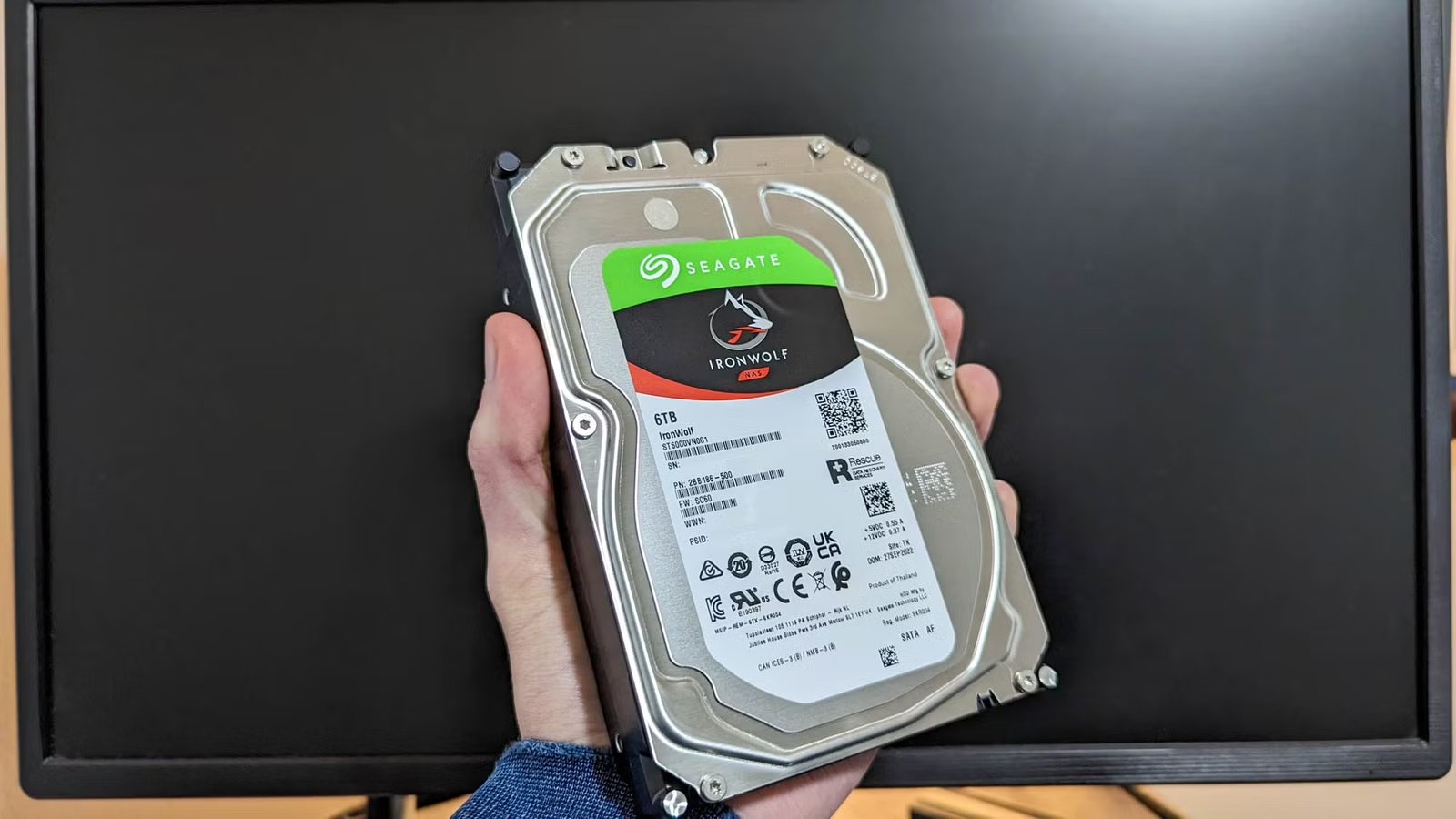
A partition is a section of a storage device, such as a hard drive, SSD, or USB flash drive, that is treated as a separate area of storage. Many drives use a single partition, but a drive can also be divided into multiple partitions for different purposes.
For example, a drive listed as “Disk 0” in Windows may contain several partitions, including ones used for the operating system, recovery tools, or personal files.
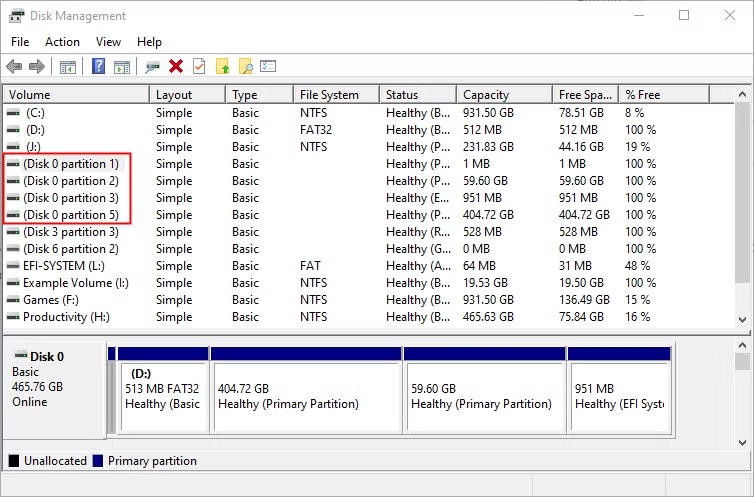
A partition structure determines how data is organized on a drive, where each partition starts and ends, and which boot information is used if the drive is bootable. If you’ve ever partitioned or formatted a disk, or configured a Mac to dual-boot Windows, you may already have encountered MBR and GPT.
GPT is the newer partitioning standard and has gradually become the preferred replacement for MBR on modern systems.
What Do GPT and MBR Do?
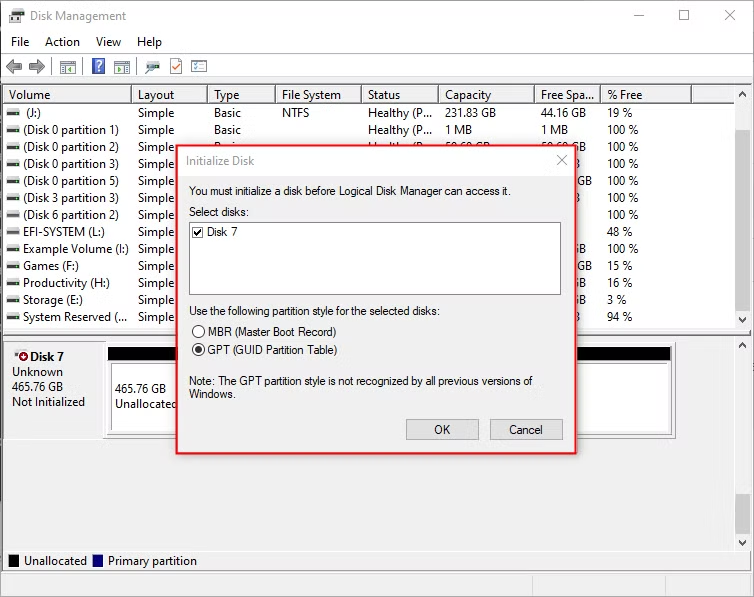
Before a drive can be used, it needs to be partitioned. MBR (Master Boot Record) and GPT (GUID Partition Table) are two different partitioning methods that store information about how the drive is organized.
This information tells the operating system where each partition starts and ends, which sectors belong to each partition, and which partition can be used to boot the computer. That is why you usually need to choose between MBR and GPT before creating partitions on a new drive.
MBR’s Limitations
MBR, or Master Boot Record, was introduced with IBM PC DOS 2.0 in 1983. It gets its name from the special boot sector located at the very beginning of a drive. This area stores information about the drive’s partitions and may also contain boot code used to start the operating system.
On Windows systems, important boot information can be stored in the MBR, which is why a damaged or overwritten MBR can sometimes prevent Windows from starting correctly. On Linux systems, boot loaders such as GRUB have also traditionally used the MBR.
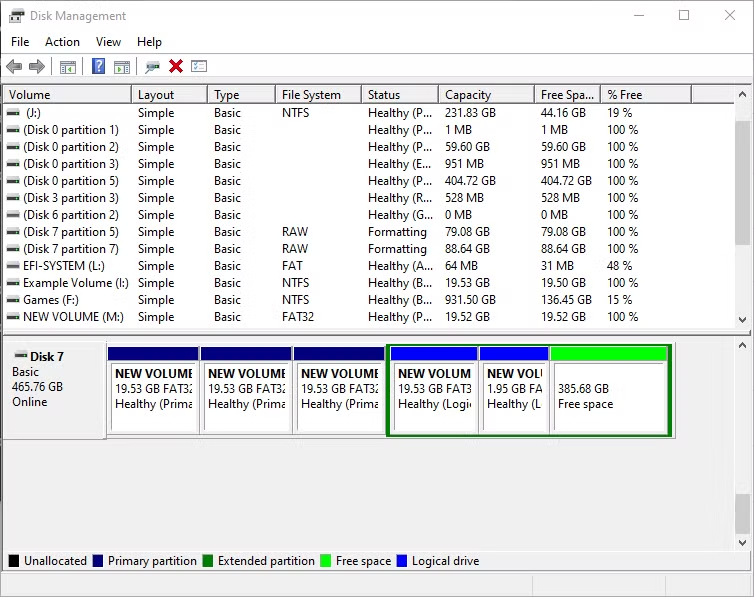
Despite its long history, MBR has several important limitations. It can only support drives up to 2 TB in size and allows a maximum of four primary partitions. If you need more than four partitions, one of them must be created as an extended partition, which can then contain additional logical partitions.
Because of these restrictions, MBR is less suitable for modern high-capacity drives and newer computer systems.
GPT’s Advantages
GPT stands for GUID Partition Table and is the newer partitioning standard designed to replace MBR. It is commonly used with UEFI, the modern firmware system that has largely replaced the traditional BIOS. Each partition on a GPT drive is assigned a Globally Unique Identifier (GUID), which helps distinguish it from every other partition.
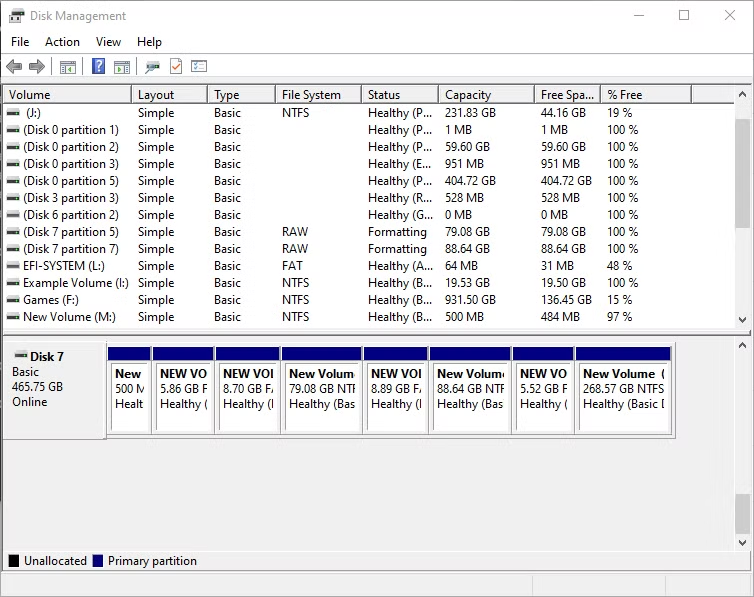
One of GPT’s biggest advantages is that it avoids many of MBR’s limitations. GPT can support much larger drives, although the practical size limit depends on the operating system and file system being used. It also supports far more partitions. For example, Windows can create up to 128 partitions on a GPT drive without requiring extended or logical partitions.
GPT is also more reliable when it comes to protecting partition information. MBR stores its main partition and boot data in a single location, so corruption in that area can cause serious problems. GPT keeps backup copies of important partition data in multiple locations on the drive, making recovery easier if one copy becomes damaged.
In addition, GPT uses CRC (Cyclic Redundancy Check) values to verify that its partition data is intact. If corruption is detected, the system may be able to restore the damaged information using a backup copy stored elsewhere on the disk. MBR does not include this type of built-in integrity checking.
Compatibility
GPT drives usually include a protective MBR for compatibility with older software. This protective record makes the drive appear as one large MBR partition to tools that do not understand GPT. Its main purpose is to stop older disk utilities from mistakenly treating the drive as empty and overwriting the GPT partition data.
On Windows, booting from a GPT drive generally requires a UEFI-based system and a supported 64-bit version of Windows. Modern versions of Windows can also read and use GPT-formatted drives for data storage even when the drive is not being used as the boot disk.
GPT is also widely supported by other operating systems. Linux includes native GPT support, and Intel-based Macs use GPT instead of Apple’s older Apple Partition Table format.
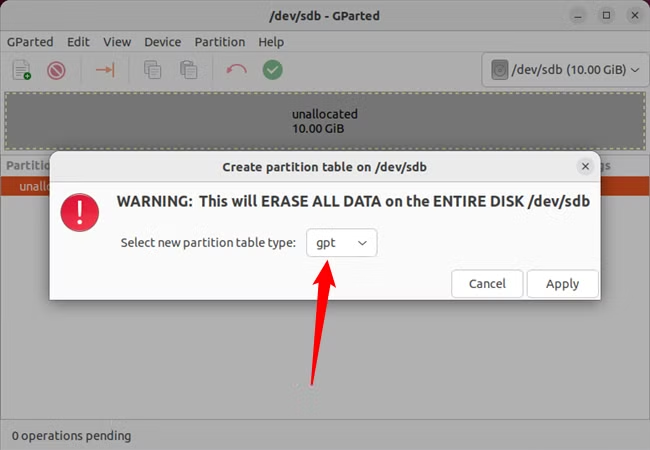
For most modern computers, GPT is the better choice when setting up a new drive. It is newer, more reliable, and designed for current systems.
MBR is mainly useful when you need compatibility with older hardware or software. For example, if you want to boot Windows on a computer that uses a traditional BIOS instead of UEFI, MBR may still be required.
Frequently Asked Questions
What is the main difference between GPT and MBR?
GPT is a newer partitioning standard that supports larger drives, more partitions, and better data protection, while MBR is older and more limited.
Which is better, GPT or MBR?
GPT is generally the better choice for modern computers because it is more reliable and works well with UEFI systems.
Can MBR support drives larger than 2 TB?
No. MBR is limited to drives of about 2 TB, while GPT can support much larger storage devices.
How many partitions can GPT and MBR support?
MBR supports up to four primary partitions. GPT supports many more, with Windows allowing up to 128 partitions on a GPT drive.
Can Windows boot from a GPT drive?
Yes, but booting Windows from GPT typically requires a UEFI-based system and a compatible 64-bit version of Windows.
Should I use MBR for an older computer?
Yes, MBR may be the better option if your computer uses a traditional BIOS or needs compatibility with older operating systems and hardware.
Can I convert an MBR drive to GPT?
Yes, it is possible to convert an MBR drive to GPT, but the method depends on your system and whether you want to keep the existing data. It is a good idea to back up important files before making partition changes.
Conclusion:
GPT and MBR both define how partitions are organized on a drive, but GPT is the better choice for most modern systems. It supports larger drives, more partitions, and includes better protection against partition data corruption. MBR still has a place when working with older hardware, legacy BIOS systems, or software that does not support GPT. In most cases, choosing GPT will give you greater flexibility and better compatibility with newer computers.
