


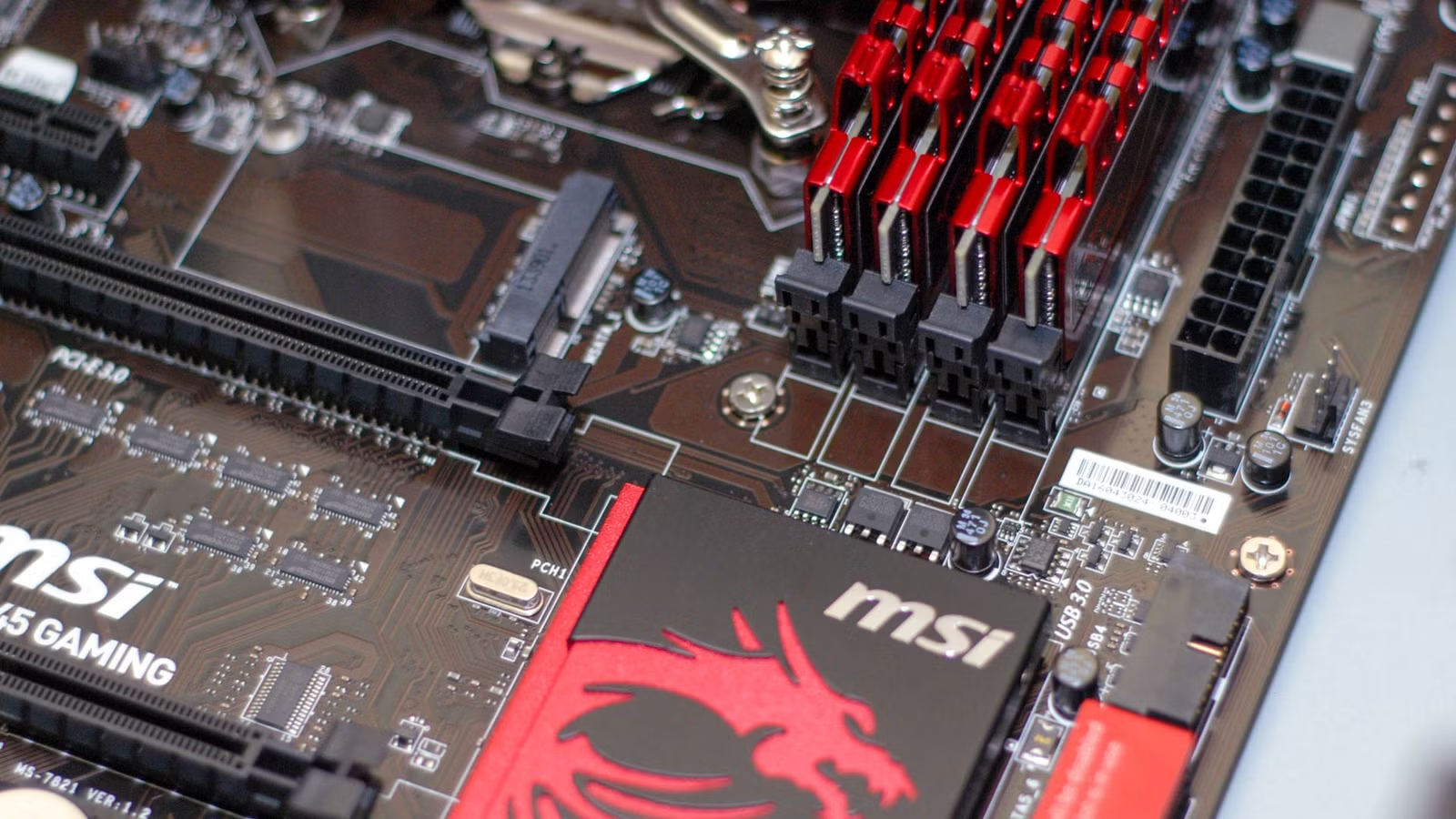
Whether you’re updating drivers, checking hardware compatibility, or simply curious about your PC’s components, there’s no need to open up your case just to find your motherboard model. With a few simple methods, you can quickly check the model number right from your keyboard. Here’s how.
Why Should You Know Your Motherboard Model?
Knowing your motherboard’s model number can be useful for several reasons. You may need it when updating drivers, checking compatibility before buying new hardware, or finding out which expansion slots, memory types, and other features your motherboard supports. It’s also helpful if you’re planning a larger PC upgrade and want to know what your current system can handle.
If you still have the paperwork or manuals that came with your computer—or with the individual components if you built the PC yourself—you may be able to find the motherboard model there. However, documentation can sometimes be outdated or incorrect, so it’s a good idea to verify the information.
Instead of opening your computer case and searching for the model number printed directly on the motherboard, you can use built-in Windows tools to find the information quickly and easily.
Find Your Motherboard Model Number Using CIM in PowerShell
Common Information Model (CIM) cmdlets let you retrieve details about your computer’s hardware and software directly from the command line. If you’ve used WMIC before, CIM will feel familiar. Even if you haven’t, the commands are simple to work with.
To get started, open PowerShell or Command Prompt. You don’t need to run it with administrator privileges, although doing so won’t cause any problems.
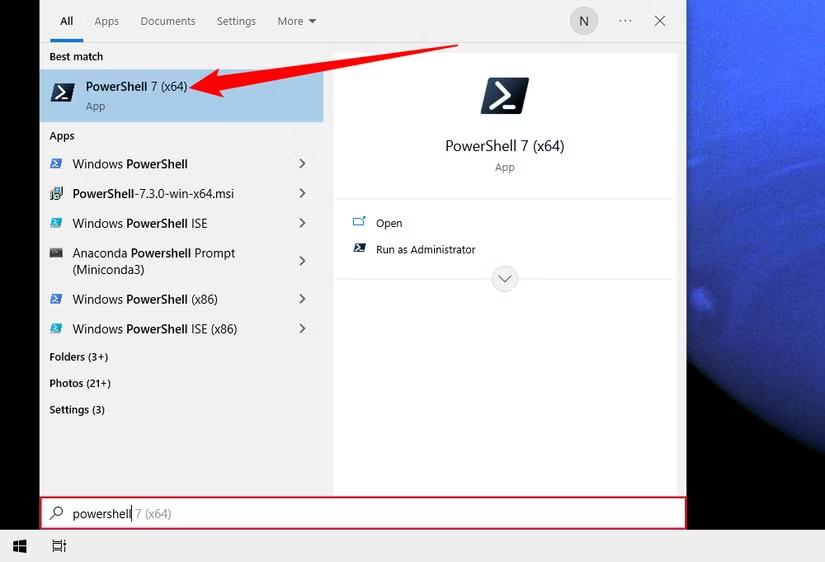
Then, run the following command to view information about your motherboard:
Get-CimInstance -ClassName Win32_BaseBoard
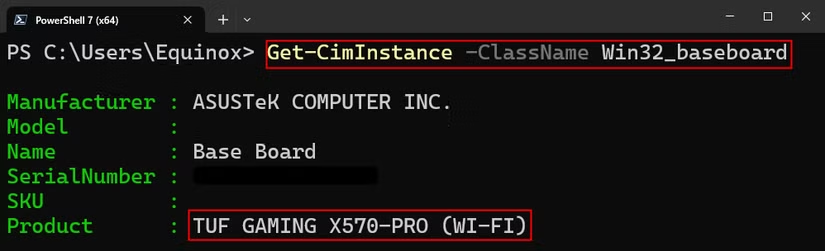
Depending on the details your system provides, you may not see a specific model number. However, the Product field will usually contain enough information to help you identify the motherboard installed in your PC.
Check Your Motherboard Model from Command Prompt or PowerShell with WMIC
Note: WMIC is deprecated, but it may still work on some Windows systems.
If you’re comfortable using Command Prompt or PowerShell, you can use the Windows Management Instrumentation Command-line (WMIC) utility to view useful information about your motherboard and other hardware components.
With WMIC, you can query the baseboard to retrieve motherboard details such as the manufacturer, product name, version, serial number, part number, and other available information.
For example, you can use WMIC to display your motherboard’s manufacturer, model, version, and serial number.
Open Command Prompt by pressing Windows + R, typing cmd, and pressing Enter. You can also search for Command Prompt from the Start menu. Administrator privileges are not required. If you prefer, you can run the same command in PowerShell.
Enter the following command and press Enter:
wmic baseboard get product,Manufacturer,version,serialnumber
Windows will then display the available motherboard information, including its manufacturer, product or model name, version, and serial number.
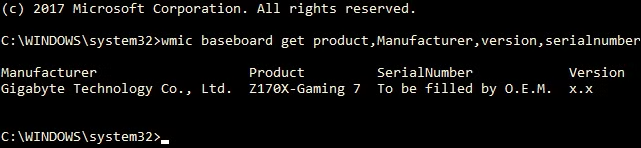
The results match the motherboard in our system. The manufacturer is listed as Gigabyte, and the model is correctly identified as the Z170X-Gaming 7. WMIC also attempted to retrieve the serial number, but that field was left blank by Gigabyte.
Even so, the command worked as expected. Without opening the computer case or installing any third-party software, we were able to quickly find the key motherboard details we needed.
Check Your Motherboard Model in System Information
System Information is a simple built-in Windows tool that lets you view details about your PC’s hardware and software.
One of the easiest ways to open it is through the Start menu. Click Start, type System Information into the search bar, then press Enter or select Open from the search results.
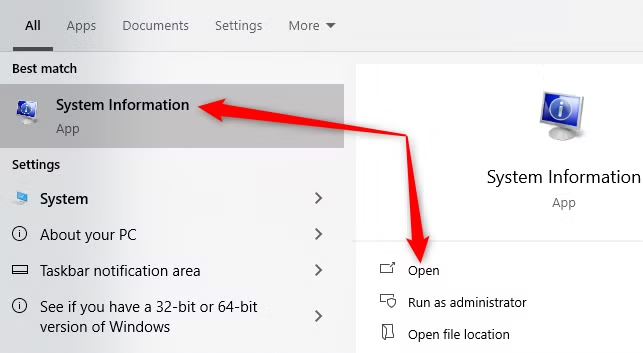
Alternatively, you can open System Information through the Run dialog. Press Windows + R, type msinfo32, and then press Enter.
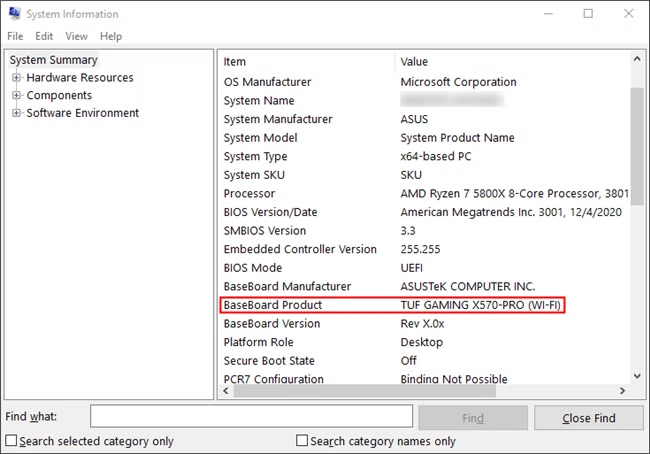
The System Summary page opens by default. Scroll down until you find BaseBoard Product. The value listed next to it is your motherboard model.
Check Your Motherboard Model with Speccy
If you prefer a graphical interface, Speccy is another simple way to find your motherboard model. It also provides more hardware information at a glance than command-line tools such as WMIC.
After downloading and installing Speccy, open the program.
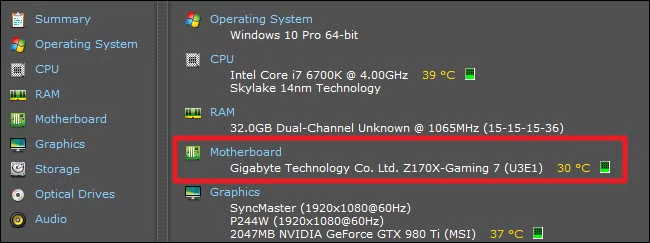
On the Summary page, you can view your motherboard model along with basic information about other system components. If your motherboard supports temperature monitoring, Speccy may also display its current operating temperature.
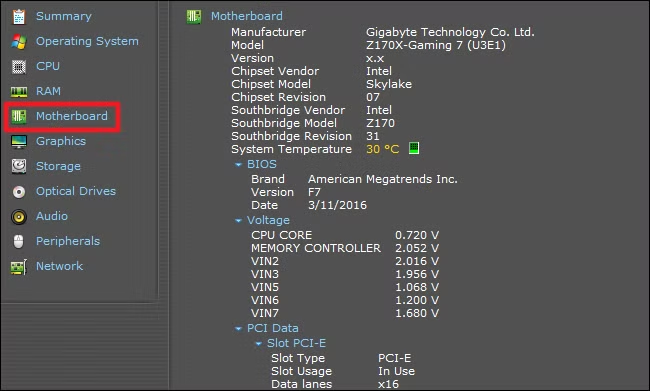
Click the Motherboard tab on the left to view more detailed information about your board. This section can include details about the chipset, voltage readings, available expansion slots, and whether those slots are currently being used.
Check Your Motherboard Model with HWiNFO64
HWiNFO64 is another useful hardware information tool that provides many of the same details as Speccy, although its interface looks quite different.
After downloading and launching HWiNFO64, make sure you are opening the actual installer or program rather than clicking on an advertisement.
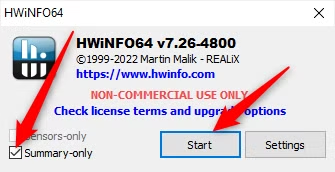
HWiNFO64 can display a large amount of system information, including sensor data. Since that level of detail is not necessary for simply identifying your motherboard, it is easier to use Summary-Only mode.
Select the Summary-Only option, then click Start to open a simplified overview of your system.
Check Your Motherboard Model with HWiNFO64
HWiNFO64 is another useful tool for checking detailed information about your PC’s hardware. It provides many of the same details as Speccy, although the interface is quite different.
After downloading and installing HWiNFO64, launch the program to get started.
Note: Make sure the download button you click is for HWiNFO64 and not an advertisement.
HWiNFO64 can display a large amount of system information, including detailed sensor readings. Since you only need basic motherboard details, using Summary-Only mode keeps things simpler and less cluttered.
Select the Summary-Only option, then click Start.
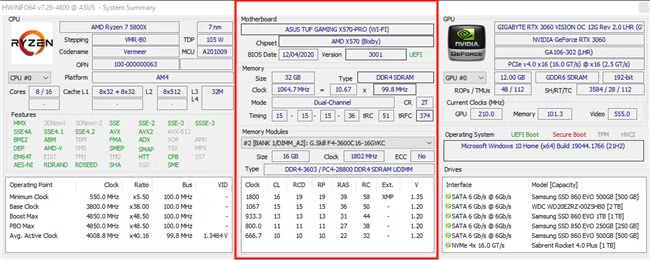
You’ll see a summary window containing detailed information about your PC’s hardware. The left side focuses on the CPU, the middle section shows details about the motherboard and RAM, and the right side displays information about the GPU and storage drives.
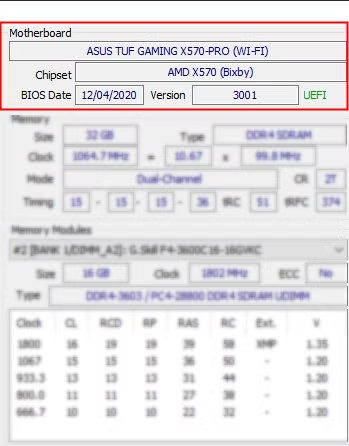
The first few lines provide the key details about your motherboard, including its manufacturer, model name or number, and BIOS version.
If the previous methods don’t work, you can check your motherboard information directly in the BIOS or UEFI. In most cases, the motherboard manufacturer and model number are displayed on the main screen or within the system information section.
Frequently Asked Questions
How can I check my motherboard model in Windows without opening the PC case?
You can find your motherboard model using built-in Windows tools such as System Information, PowerShell, or Command Prompt. Third-party utilities like Speccy and HWiNFO64 can also display motherboard details.
Can I find my motherboard model using System Information?
Yes. Press Windows + R, type msinfo32, and press Enter. In the System Summary section, look for BaseBoard Manufacturer and BaseBoard Product to identify your motherboard.
How do I check my motherboard model using PowerShell?
Open PowerShell and run the following command:
Get-CimInstance -ClassName Win32_BaseBoard
This command can display information such as the motherboard manufacturer, product name, serial number, and version.
Can Command Prompt show my motherboard model?
Yes, although the WMIC tool is deprecated on newer versions of Windows. On systems where it is still available, you can run:
wmic baseboard get product,Manufacturer,version,serialnumber
This will display the motherboard details that are available on your system.
Why does my motherboard serial number appear blank?
Some manufacturers do not store the motherboard serial number in the system firmware. In that case, Windows tools may show a blank field or a generic value even though the motherboard model is detected correctly.
Can third-party tools identify my motherboard?
Yes. Programs such as Speccy and HWiNFO64 can identify your motherboard and provide additional details, including chipset information, BIOS version, temperatures, voltages, and expansion slots.
What should I do if Windows cannot detect my motherboard model?
If Windows tools do not provide the model number, restart your PC and enter the BIOS or UEFI. The motherboard manufacturer and model are often shown on the main screen or inside the system information section.
Conclusion
Checking your motherboard model number on a Windows PC is usually quick and straightforward. You can use built-in tools such as System Information, PowerShell, or Command Prompt, while third-party utilities like Speccy and HWiNFO64 can provide even more detailed hardware information.
Knowing your motherboard model can help when updating drivers, checking hardware compatibility, upgrading components, or troubleshooting your system. If Windows does not display the information you need, you can also check the BIOS or UEFI for the motherboard manufacturer and model number. With these methods, you can identify your motherboard without opening the PC case.
