


Locating your Windows 11 product key can be difficult, but a few simple commands can help you find it quickly.
Here’s a cleaner, more natural, and SEO-friendly version:
Your Windows product key may be printed on a sticker attached to your PC, but that sticker is often placed in an inconvenient or hard-to-reach location. Fortunately, you can use a few simple commands to retrieve your Windows 11 product key directly through the operating system. The process is similar to finding a product key in Windows 10, although there are a few differences to keep in mind.
This guide shows you how to find your Windows 11 product key using built-in system tools, so you don’t have to search for a misplaced or difficult-to-access sticker on your computer.
3 Simple Ways to Find Your Windows 11 Product Key
These methods are most useful for Windows 11 PCs that have been running the operating system since purchase, as well as Windows 10 computers that were upgraded to Windows 11. Enterprise computers may use a different licensing system, so their product keys may not be accessible through these techniques.
1. Find Your Windows 11 Product Key Using Command Prompt
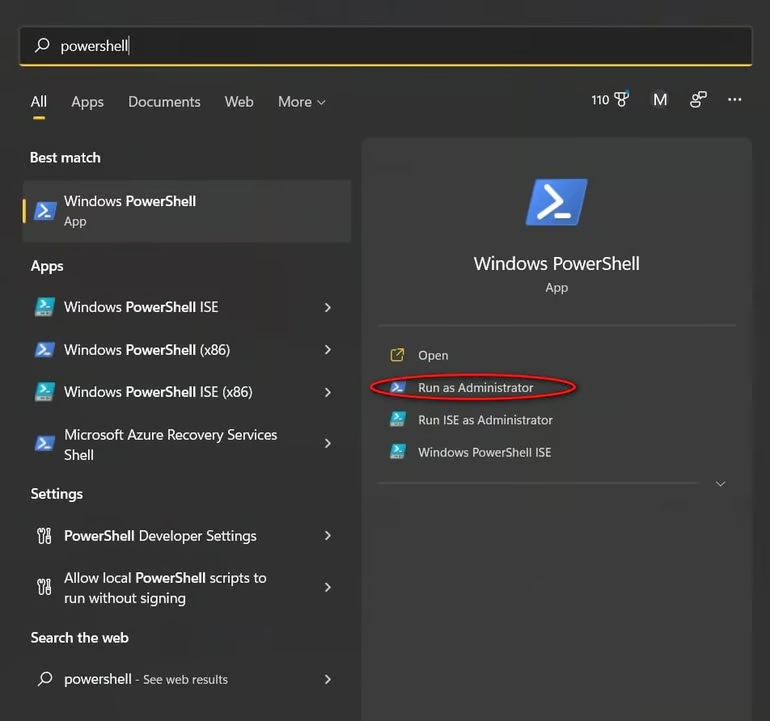
One of the quickest ways to check for a Windows 11 product key is through Command Prompt. Start by opening Windows Search and typing Command Prompt. When it appears in the results, select Run as administrator to open an elevated Command Prompt window.
Alternatively, press Windows Key + R to open the Run dialog, enter cmd, and press Enter. For commands that require administrator privileges, make sure you launch Command Prompt with elevated permissions.
Enter or paste the following command into Command Prompt, then press Enter:
wmic path softwareLicensingService get OA3xOriginalProductKey
If your PC has an embedded Windows product key, the command will display the original Windows 11 product key directly in the Command Prompt window.
2. Find Your Windows 11 Product Key Using PowerShell
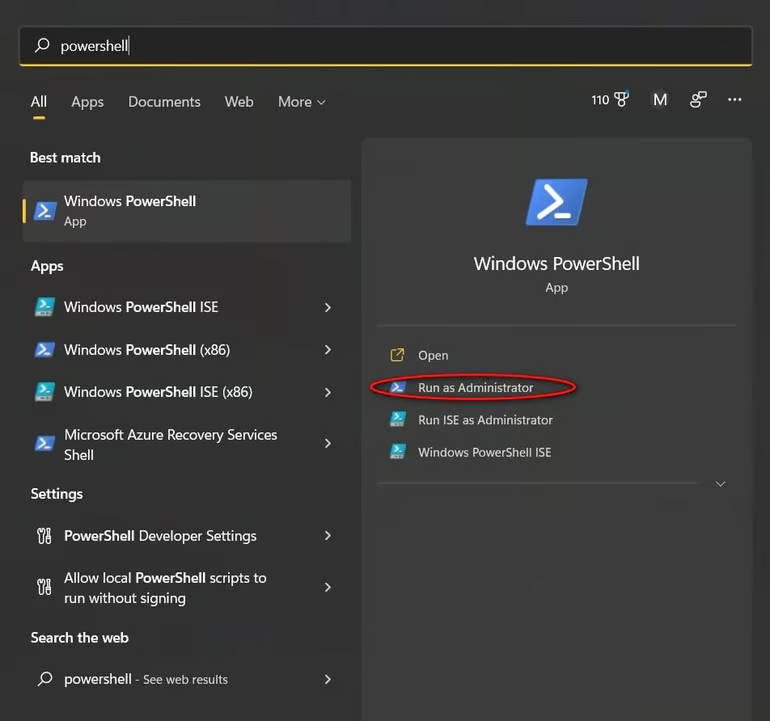
If you prefer PowerShell, you can use a similar approach with a different command. Open Windows Search and type PowerShell. Select it from the search results, then click Run as administrator to launch PowerShell with the necessary permissions.
At the PowerShell prompt, enter or paste the following command and press Enter:
(Get-WmiObject -query 'select * from SoftwareLicensingService').OA3xOriginalProductKey
If your PC has an embedded Windows product key, PowerShell should display the original Windows 11 product key in the window.
3. Find Your Windows 11 Product Key in the Registry
You can also check the Windows Registry for your product key. To get started, open Windows Search, type regedit, and select Registry Editor from the results. Choose Run as administrator if prompted.
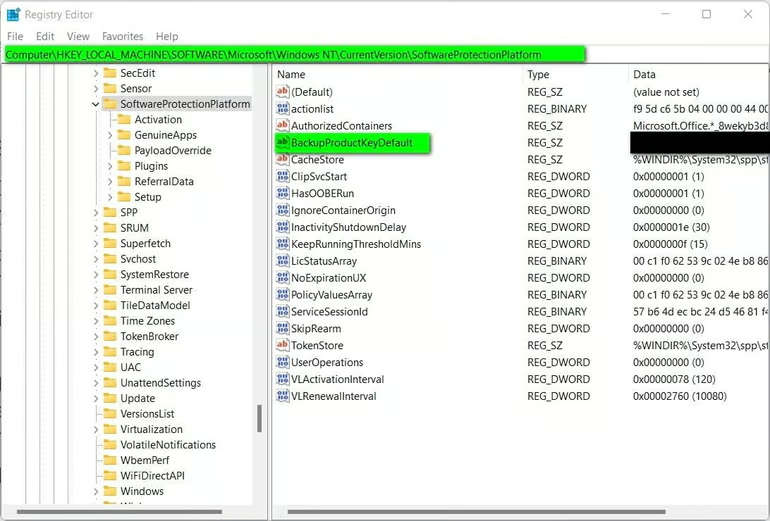
In Registry Editor, use the left-hand navigation pane to go to:
Computer\HKEY_LOCAL_MACHINE\SOFTWARE\Microsoft\Windows NT\CurrentVersion\SoftwareProtectionPlatform
Look for the BackupProductKeyDefault entry. If Windows has stored a recoverable product key there, its value may display the Windows 11 product key.
Note: The key shown in the Registry may be different from the one returned by Command Prompt or PowerShell. This can happen because Windows may use a digital license or a different key for activation.
Exit out of the Registry Editor when you are finished.
Additional Tips for Finding Your Windows 11 Product Key
Several third-party tools claim to find and display your Windows 11 product key. However, these applications may not be necessary when Windows already provides built-in ways to check for a product key. Using the methods above can also help you avoid the potential security and privacy risks associated with installing unknown software.
If you purchased Windows 11 through the Microsoft Store, check your Microsoft account’s order history for information related to your purchase and license. For PCs that came with Windows 11 pre-installed from an OEM or retailer, activation is typically handled through a digital license, so you may not need to enter or retrieve a product key.
Regardless of how you obtained Windows 11, a traditional product key follows the standard 25-character alphanumeric format, typically displayed as five groups of five characters.
Here are 10 concise, SEO-friendly FAQs for your article:
Frequently Asked Questions
How can I find my Windows 11 product key?
You can check your Windows 11 product key using Command Prompt, PowerShell, or the Windows Registry. These built-in methods can reveal an embedded product key when one is available.
Can I find my Windows 11 product key using Command Prompt?
Yes. Open Command Prompt as an administrator and run the appropriate Windows licensing command to check for an embedded product key.
How do I find my Windows 11 product key with PowerShell?
Open PowerShell with administrator privileges and run the Windows licensing query. If your device has an embedded key, PowerShell may display it.
Is the Windows 11 product key stored in the Registry?
Some Windows installations store product-key information in the Registry. You can check the SoftwareProtectionPlatform section using Registry Editor.
What does a Windows 11 product key look like?
A traditional Windows product key is a 25-character alphanumeric code divided into five groups of five characters.
Can I activate Windows 11 without a product key?
Yes. Many Windows 11 PCs use a digital license, which can activate Windows without requiring you to manually enter a product key.
Why can’t I see my Windows 11 product key?
Your PC may be activated with a digital license, or the product key may not be stored in a location accessible through these methods. This is common with upgraded and OEM systems.
Is the product key the same after upgrading from Windows 10 to Windows 11?
An upgrade from Windows 10 to Windows 11 can use a digital license rather than requiring a new product key. As a result, the key displayed by different methods may not be the one currently used for activation.
Should I use third-party software to find my Windows 11 product key?
Third-party key-finder tools are generally unnecessary because Windows provides built-in methods for checking licensing information. Avoid installing unknown applications that could pose security or privacy risks.
Where can I find my Windows 11 product key if I bought Windows from Microsoft?
If you purchased Windows through Microsoft, check your Microsoft account and purchase records for licensing information. Depending on how Windows was purchased, activation may instead be associated with a digital license.
Here’s a concise conclusion that fits the article naturally:
Conclusion
Finding your Windows 11 product key does not require third-party software or a complicated process. Command Prompt, PowerShell, and Registry Editor provide convenient ways to check for product-key information directly within Windows. However, some PCs use a digital license instead of a traditional key, particularly systems that came with Windows pre-installed or were upgraded from Windows 10.
If you need the key for troubleshooting, reinstallation, or activation, start with the built-in methods outlined above. They are quick, accessible, and can help you determine whether your Windows 11 installation has a recoverable product key.
