



Copying and pasting is one of the most basic features available on any Android smartphone or tablet. But if you want to get more out of it, the clipboard feature can help you quickly access and manage everything you’ve copied. Let’s take a closer look at how it works.
What Is the Clipboard?
The clipboard is a feature that temporarily stores items you’ve copied, including text, links, and images. Instead of limiting you to only the most recently copied item, it lets you view previously copied content and paste it again whenever needed.
Like many Android features, the clipboard can work a little differently depending on your device and the version of Android it uses. One of the easiest and most widely available ways to access the clipboard is through your keyboard app, which is the method we’ll use in this guide.
How to Use the Clipboard on Android
First, make sure you have a keyboard app that includes a built-in clipboard feature. Two popular options are Google’s Gboard and Microsoft SwiftKey. Both work in a similar way, but we’ll use Gboard for the examples below.
Once your keyboard is installed and set up, copy something such as text, a web link, or an image. Then open the app where you want to paste it and tap inside a text field to bring up the keyboard.
Next, look for the clipboard icon in the keyboard’s top toolbar and tap it. This will open your clipboard, where you can view and select recently copied items.
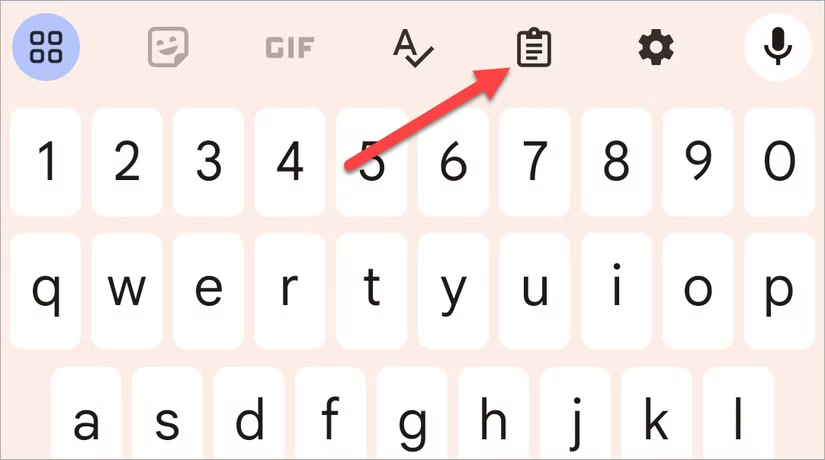
This opens the clipboard, where your most recently copied item will usually appear at the top of the list. To paste something, simply tap the item you want, and it will be inserted into the text field.
If this is your first time using the clipboard, you may be prompted to enable it. In that case, previously copied items may not appear until the feature has been turned on and used.
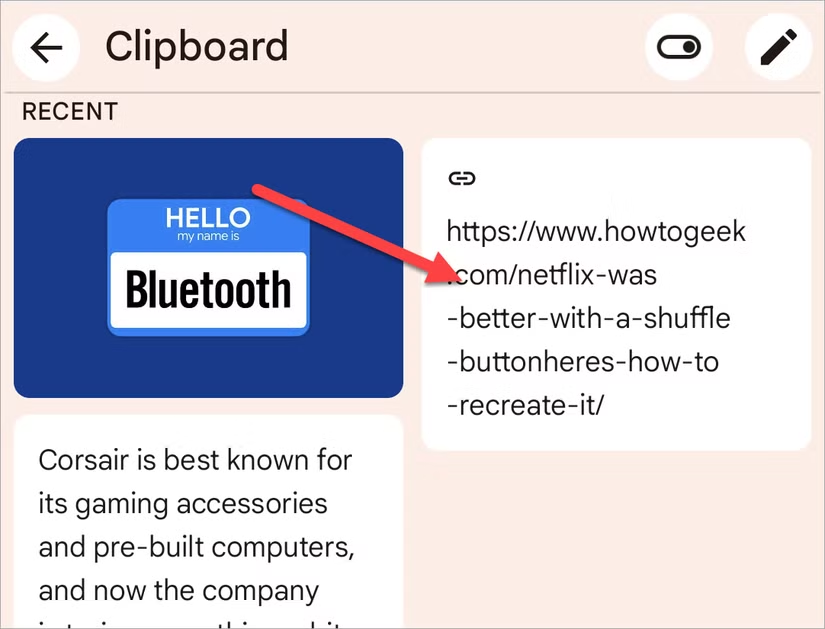
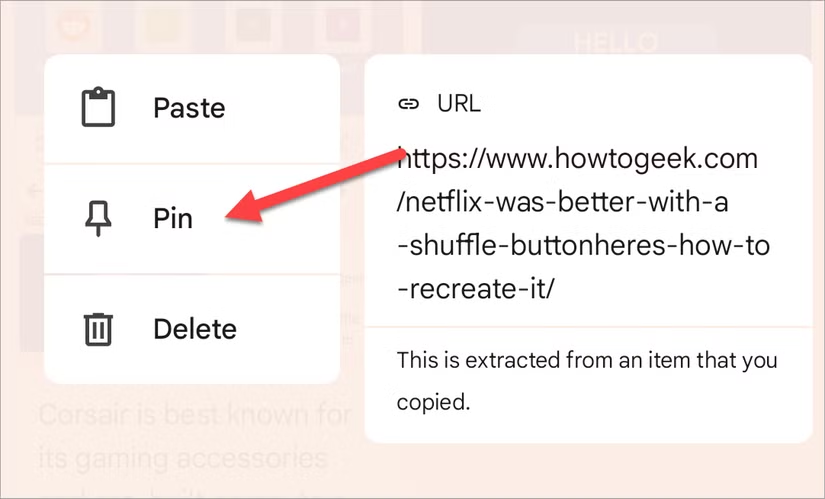
Android does not keep clipboard items permanently. Older copied content is usually removed after a certain period of time. Both Gboard and SwiftKey let you pin important items so they remain available instead of being automatically deleted.
To pin an item, press and hold it in the clipboard, then select the Pin option. The pinned item will stay saved until you choose to remove it.
If you regularly copy and paste content on Android, the clipboard can be a very useful tool. It lets you copy multiple items and paste them individually whenever you need them, so you don’t have to keep switching back and forth between apps. It’s a simple feature that can save time and make everyday tasks more convenient.
Frequently Asked Questions
Where is the clipboard on Android?
On most Android devices, you can access the clipboard through your keyboard app. Open a text field to bring up the keyboard, then tap the clipboard icon in the toolbar.
How do I view my clipboard history on Android?
If your keyboard supports clipboard history, tap the clipboard icon to see recently copied text, links, images, and other supported items. Gboard and Microsoft SwiftKey both offer this feature.
How long does Android keep copied items in the clipboard?
Clipboard items are usually stored temporarily and may be deleted automatically after a certain period. The exact behavior can vary depending on your device and keyboard app.
Can I save clipboard items permanently?
You can keep important clipboard items from being automatically removed by pinning them. In apps such as Gboard, press and hold a clipboard item and select Pin.
Can I copy more than one item at a time on Android?
Yes. Clipboard history allows you to copy multiple items and access them later. You can then choose which item you want to paste instead of being limited to the most recently copied content.
Why can’t I find the clipboard icon on my Android keyboard?
The clipboard icon may be hidden in the keyboard toolbar or menu. You may also need to enable the clipboard feature first. If your current keyboard does not support clipboard history, you can use an app such as Gboard or Microsoft SwiftKey.
How do I clear the clipboard on Android?
Open the clipboard from your keyboard and delete individual items or use the available option to clear multiple items. The exact steps may differ depending on the keyboard app you use.
Conclusion
Knowing how to find and use the clipboard on Android can make copying and pasting much faster and more convenient. With keyboard apps like Gboard or SwiftKey, you can view recently copied items, paste them whenever needed, and pin important content so it stays available longer. Once you get familiar with the clipboard, it becomes a simple but powerful tool for managing text, links, and other copied content on your Android device.
