



Need to tune your guitar quickly? Dedicated tuner apps can cost money, and a physical tuner is easy to forget when you need it most. Google’s free Guitar Tuner offers a simple alternative that works right in your browser, making it a handy option when you need to tune up in a hurry.
How to Find Google Guitar Tuner
To open Google Guitar Tuner, start by launching a web browser such as Chrome or Safari. Go to Google Search and type “Google Guitar Tuner” into the search bar.
After you run the search, the tuner should appear near the top of the results, ready to use directly in your browser.
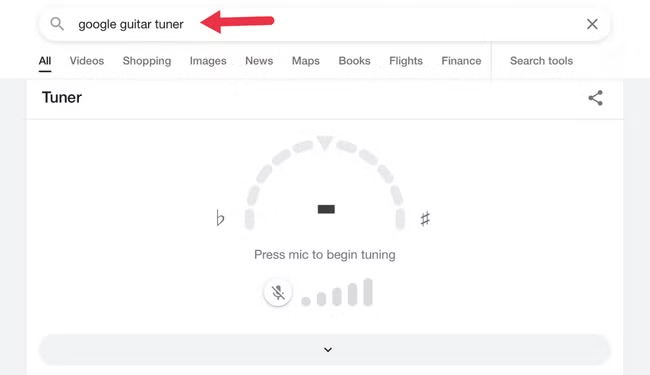
In our testing, searching only for “guitar tuner” did not always bring up Google’s tuner tool. For more reliable results, search for “Google Guitar Tuner” instead.
This works differently from some other Google tools, such as the calculator, which often appears automatically when you search for a simple term like “calculator.”
How to Use Google Tuner
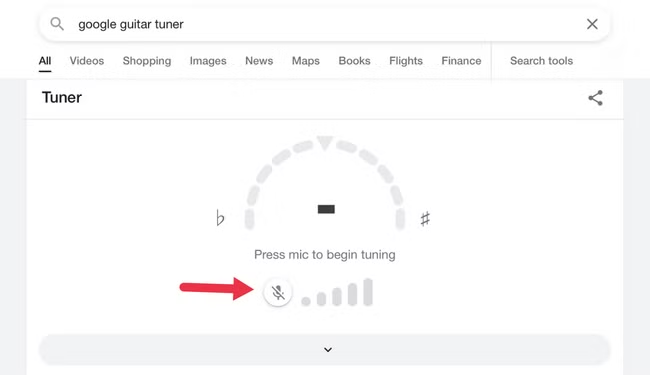
Before you can use Google Guitar Tuner, you’ll need to allow your browser to access your device’s microphone. When you see the message “Press Mic to Begin Tuning,” tap or click the microphone icon.
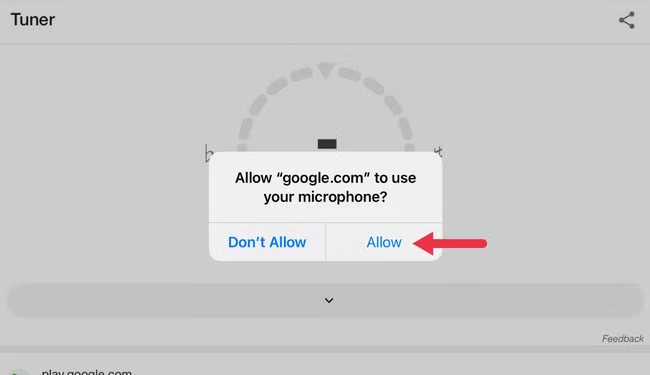
If prompted, grant microphone permission so the tuner can listen to your guitar and detect the notes you play.
You should see a popup asking for permission to use your microphone. Select “Allow” to proceed.
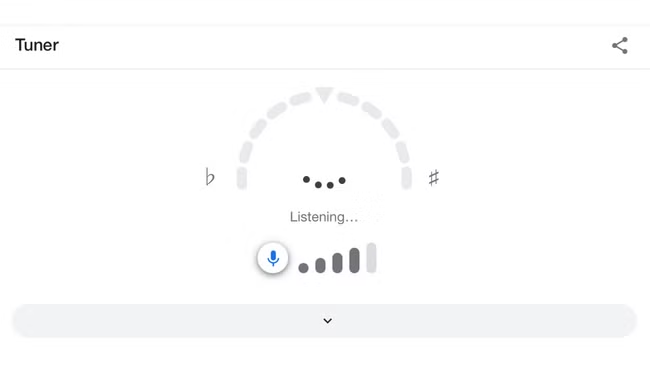
You should now see a message in the Google tuner that says “Listening,” which means the app is ready to help you tune your guitar.
Play the open string you want to tune, and Google Guitar Tuner will identify the note it is currently producing. For example, if you’re tuning the low E string in standard EADGBE tuning, the tuner will show whether the pitch is too high, too low, or close to the correct note.
For the most accurate results, turn off any overdrive or distortion effects before tuning.
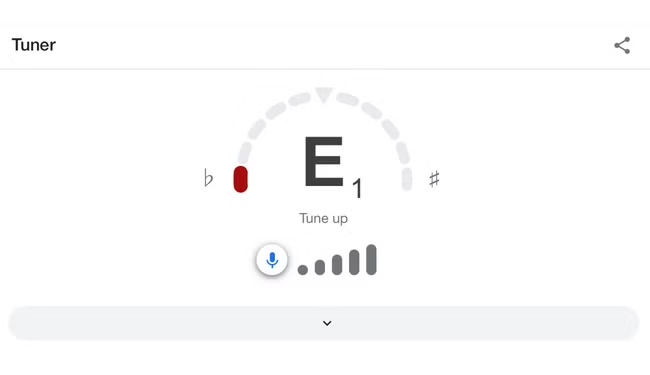
Tune the string higher or lower as needed until the tuner shows you’re on the right note with a green arrow.
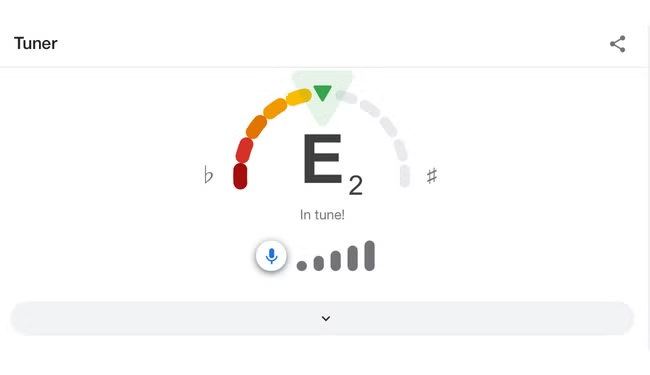
Keep in mind that Google Guitar Tuner works as a chromatic tuner, which means it can detect and tune to any note in Western music notation. However, it does not let you choose a specific guitar tuning.
Because of this, you’ll need to know the target note for each string and whether you need to tune the string higher or lower based on the note currently shown.
How Accurate Is Google Guitar Tuner?
Google Guitar Tuner is generally accurate enough for everyday guitar tuning. Its performance can depend slightly on the quality of your device’s microphone and the amount of background noise, but because the tool only needs to detect the frequency of a note, it should work reliably on most phones, tablets, and computers.
In testing, Google Guitar Tuner produced results that matched other popular tuning tools, including dedicated tuner apps, built-in guitar tuners, and tuners found in multi-effects pedals. This makes it a dependable option for most players who need a quick and convenient way to tune their instrument.
For better accuracy, use the tuner in a quiet environment and play one string at a time. Keeping distortion and other effects turned off can also help the microphone detect the note more clearly.
Once your guitar is in tune, you can also search Google for “metronome” to access its free built-in metronome. It can be a useful companion for practicing scales, chords, timing, and other exercises.
Frequently Asked Questions
What is Google Guitar Tuner?
Google Guitar Tuner is a free browser-based tool that uses your device’s microphone to detect the pitch of a guitar string and help you tune it.
How do I open Google Guitar Tuner?
Open Google Search and type “Google Guitar Tuner.” The tuner should appear near the top of the search results.
Do I need to install an app to use Google Guitar Tuner?
No. Google Guitar Tuner works directly in your web browser, so there is no need to download or install a separate app.
Does Google Guitar Tuner need microphone access?
Yes. You need to allow microphone access so the tuner can listen to the notes played on your guitar.
Can Google Guitar Tuner tune any guitar string?
Yes. It works as a chromatic tuner, meaning it can detect different musical notes. However, you need to know the correct target note for each string.
Is Google Guitar Tuner accurate?
It is generally accurate enough for normal tuning, although results can vary slightly depending on your microphone quality and background noise.
Can I use Google Guitar Tuner for alternate tunings?
Yes, but you must know the notes required for the alternate tuning because Google Guitar Tuner does not currently offer preset tuning modes.
Conclusion:
Google Guitar Tuner is a quick and convenient way to tune your guitar without installing a separate app or carrying a physical tuner. Since it works directly in your browser and uses your device’s microphone, it can be especially useful when you need a simple tuning tool on the go. For the best results, use it in a quiet environment and make sure you know the target note for each string.
