


Google Chrome includes a feature called hardware acceleration, which uses your computer’s GPU to handle certain tasks more efficiently and reduce the workload on the CPU. In many cases, this can improve browser performance.
However, hardware acceleration can sometimes cause problems due to graphics driver compatibility issues. If Chrome is experiencing glitches, crashes, or display problems, turning off hardware acceleration may help resolve them.
What Is Hardware Acceleration in Chrome?
Hardware acceleration allows Chrome to use your computer’s hardware, especially the graphics processing unit (GPU), to handle certain tasks more efficiently than the CPU could on its own.
In Chrome, the GPU can take care of graphics-heavy activities such as video playback, browser games, animations, and other visually demanding processes. This reduces the workload on the CPU and can improve overall performance.
However, hardware acceleration does not always work perfectly on every system. In some cases, it can lead to lag, freezing, crashes, display issues, or increased battery usage. These problems may be caused by the GPU itself or by incompatible or outdated graphics drivers.
If you think hardware acceleration is causing issues in Chrome, you can disable it temporarily and see whether the browser performs more smoothly.
How to Turn Hardware Acceleration On or Off
Hardware acceleration is usually enabled by default in Google Chrome. If you want to turn it off, start by opening Chrome and clicking the three-dot menu in the top-right corner, then select Settings.
You can also go directly to the Settings page by typing chrome://settings/ into the address bar and pressing Enter.

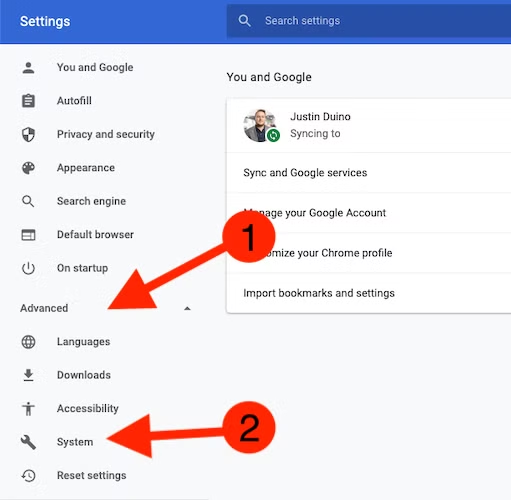
In the Settings menu, expand the “Advanced” drop-down section found in the left sidebar and then select “System.”
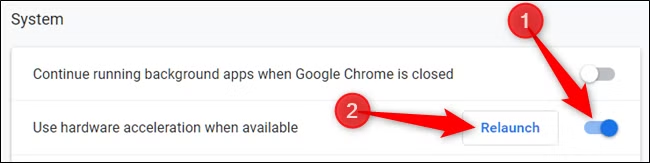
Find the “Use hardware acceleration when available” setting. Toggle the switch to the “Off” position and then click “Relaunch” to apply the changes.
Warning: Save any work before restarting Chrome. The browser may reopen your previous tabs after the relaunch, but any unsaved information entered on those pages could be lost.
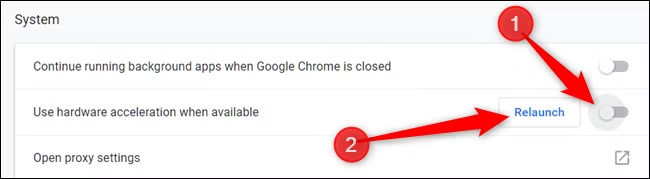
If you do not want to restart Chrome immediately, you can simply close the Settings tab and continue working. The change will take effect the next time you fully close and reopen Chrome.
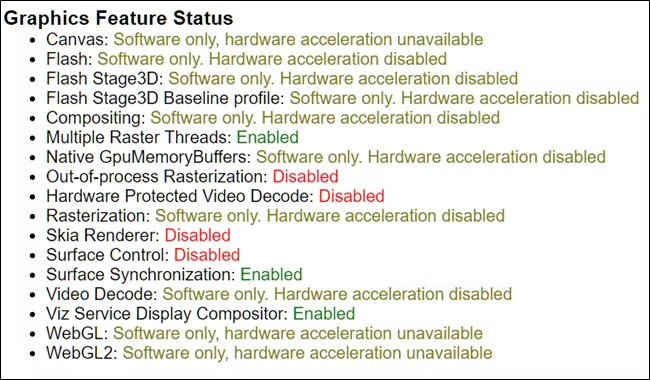
To check whether hardware acceleration has been disabled, type chrome://gpu/ into the address bar and press Enter. On the page that opens, look under Graphics Feature Status. If hardware acceleration is off, many entries should show “Software only, hardware acceleration disabled.”
If you want to enable or re-enable hardware acceleration, open chrome://settings/system in Chrome.
Turn on “Use hardware acceleration when available,” then click Relaunch to restart Chrome and apply the change.
Frequently Asked Questions
What is hardware acceleration in Chrome?
Hardware acceleration allows Chrome to use your computer’s GPU for tasks such as video playback, animations, games, and other graphics-heavy processes.
Should I turn hardware acceleration on or off in Chrome?
In most cases, hardware acceleration should stay enabled because it can improve performance. However, turning it off may help if Chrome is freezing, crashing, lagging, or showing graphics problems.
How do I turn off hardware acceleration in Chrome?
Open Chrome Settings, go to System, and turn off Use hardware acceleration when available. Then relaunch Chrome to apply the change.
How do I turn hardware acceleration back on?
Go to chrome://settings/system, enable Use hardware acceleration when available, and click Relaunch.
Does disabling hardware acceleration make Chrome slower?
It can in some situations, especially when playing videos, using web apps, or running graphics-intensive content. However, performance may improve if hardware acceleration was causing compatibility issues.
How can I check if hardware acceleration is disabled?
Type chrome://gpu/ into the Chrome address bar and press Enter. Under Graphics Feature Status, many entries may show that hardware acceleration is disabled.
Can hardware acceleration cause Chrome to crash?
Yes. In some cases, outdated graphics drivers or GPU compatibility problems can cause crashes, screen glitches, freezing, or other issues when hardware acceleration is enabled.
Conclusion:
Hardware acceleration can help Chrome run more smoothly by using your GPU for graphics-heavy tasks, but it may also cause problems on some systems. If you notice crashes, lag, screen glitches, or unusual battery drain, turning it off can be worth trying. You can always re-enable it later if performance does not improve.
