

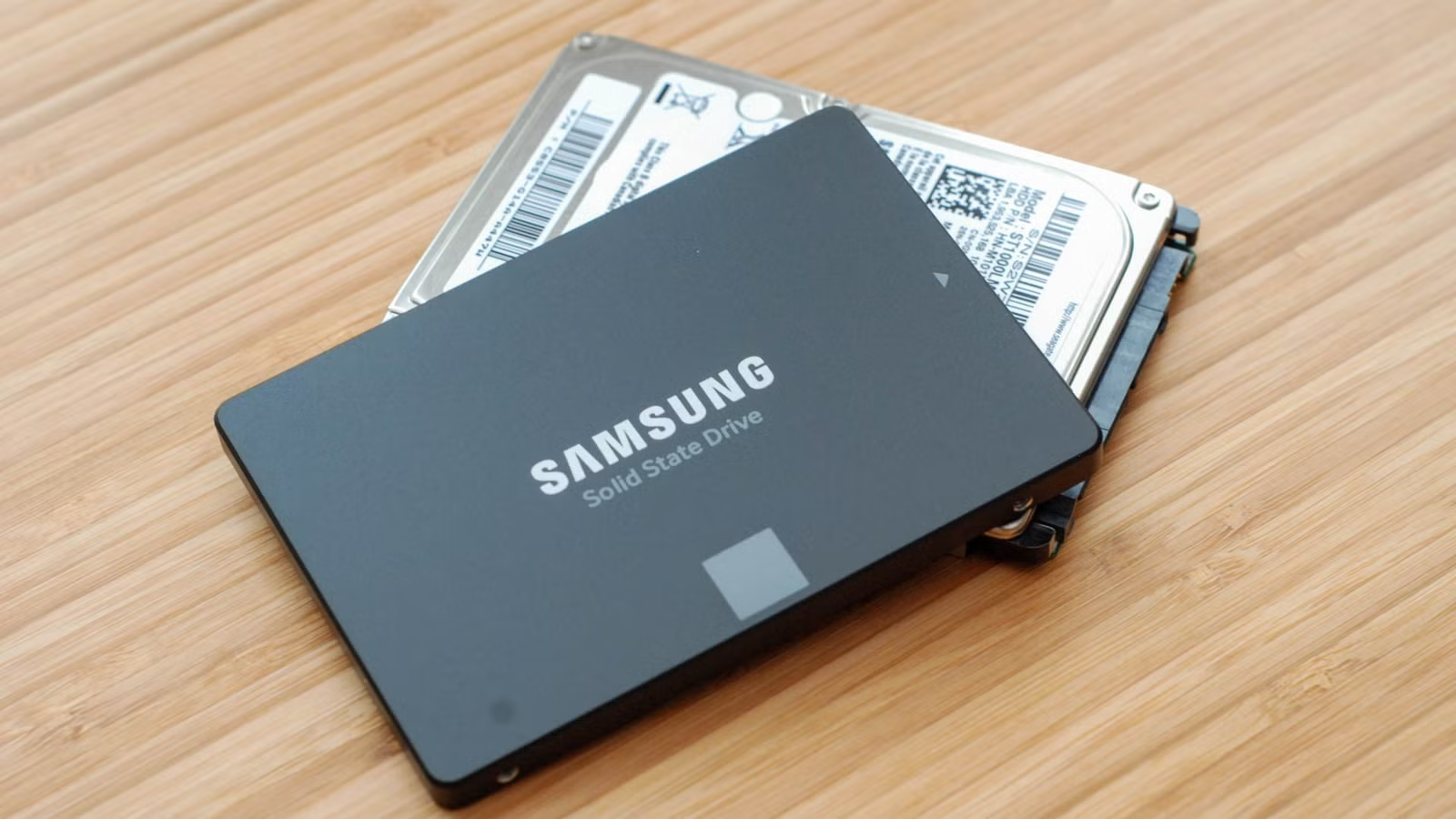
Whether you’re formatting an internal or external drive, a USB flash drive, or an SD card, Windows typically offers three file system options: NTFS, FAT32, and exFAT. Each format has its own advantages, limitations, and ideal use cases, so understanding the differences can help you choose the right one for your storage device.
What Is a File System?
A file system is the method an operating system uses to organize, store, and manage data on a drive. It determines how files are saved and what information can be associated with them, such as file names, permissions, and other attributes.
Windows commonly supports three file systems: NTFS, FAT32, and exFAT. NTFS is the most advanced of the three and is typically used for the Windows system drive as well as most internal storage devices.
FAT32 is an older format with fewer features and limitations compared with NTFS, but it remains widely compatible with many operating systems and devices. exFAT is a newer alternative to FAT32 that supports larger files and storage devices while offering broader compatibility than NTFS, although FAT32 is still supported by a wider range of older devices.
What Is NTFS?
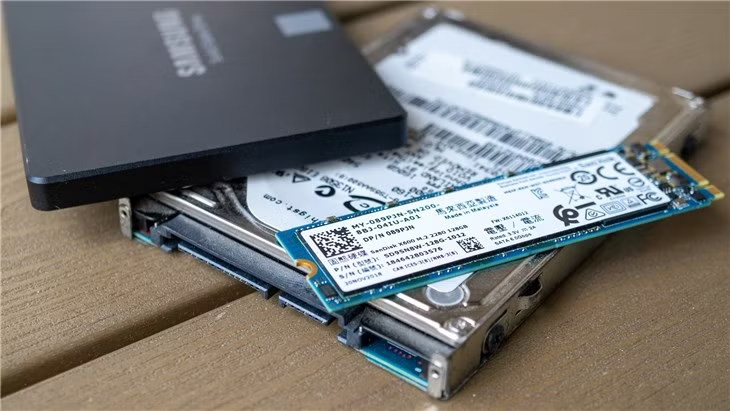
NTFS is the primary file system used by modern versions of Windows. When Windows is installed, the system drive is usually formatted with NTFS by default. It supports extremely large files and partitions, with limits that are far beyond what most users are likely to encounter. NTFS became widely used on consumer PCs with Windows XP, although it was originally introduced with Windows NT. The name stands for New Technology File System.
Compared with FAT32 and exFAT, NTFS includes a much broader range of advanced features. These include file and folder permissions, journaling for improved data recovery after crashes, shadow copies for backups, encryption, disk quotas, hard links, and other system-level capabilities. Features such as permissions and journaling make NTFS especially well suited for Windows system drives and other storage where security and reliability are important.
Your Windows system partition should use NTFS. If you have an additional internal drive and plan to install applications or games on it, NTFS is usually the most suitable choice. It also works well for drives that will be used mainly with Windows computers, where cross-platform compatibility is not a major concern.
The main drawback of NTFS is limited support outside Windows. It works reliably across modern Windows versions, but compatibility with other operating systems and devices can vary. macOS can normally read NTFS drives but does not provide full write support by default. Linux support depends on the distribution and configuration, with some systems offering full read-and-write access while others may provide more limited support. Many gaming consoles, media players, and other consumer devices also do not support NTFS as widely as FAT32 or exFAT.
Compatibility: Best supported by Windows. macOS generally provides read access by default, while Linux support can vary. Many non-PC devices may have limited or no NTFS support.
Limits: NTFS supports extremely large files and partitions, with theoretical limits far beyond the requirements of most everyday users.
Ideal Use: NTFS is best suited for Windows system drives, internal storage, and other drives that will primarily be used with Windows computers.
What Is FAT32?
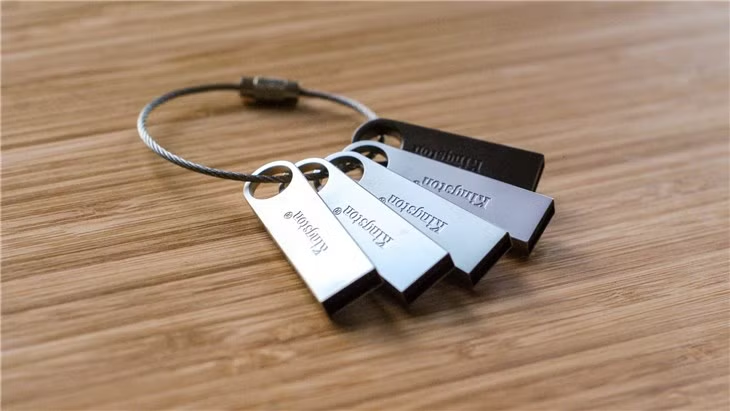
FAT32 is the oldest of the three common file systems supported by Windows. It was introduced with Windows 95 as a replacement for the earlier FAT16 format used in older versions of Windows and MS-DOS. FAT32 stands for File Allocation Table 32.
One of FAT32’s biggest strengths is compatibility. Because it has been around for so long, it is supported by a very wide range of computers, operating systems, game consoles, media devices, and USB-enabled hardware. For this reason, many USB flash drives and memory cards are still formatted with FAT32.
However, FAT32 also has some important limitations. A single file cannot be larger than 4GB,
What Is exFAT?
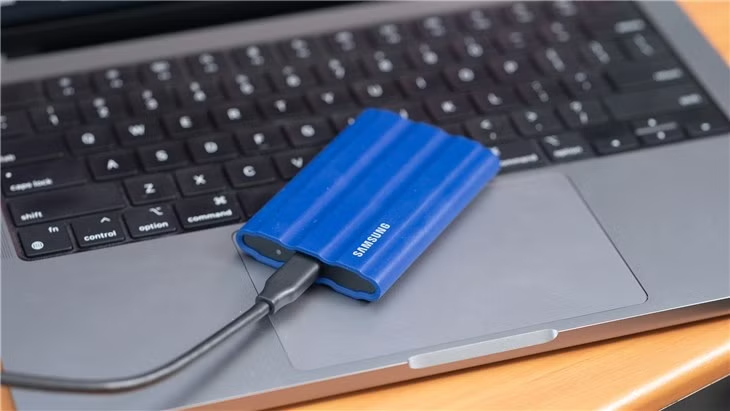
exFAT was introduced in 2006 as a modern file system designed primarily for flash storage and removable drives. Its name stands for Extended File Allocation Table. It was created to provide the simplicity and broad usability of FAT32 while removing many of FAT32’s size restrictions.
One of exFAT’s biggest advantages is support for very large files. Unlike FAT32, which limits individual files to 4GB, exFAT can handle files and storage volumes that are far larger. This makes it a practical option for large videos, backups, disk images, and other high-capacity data.
exFAT also offers better cross-platform compatibility than NTFS. Windows and modern versions of macOS can both read from and write to exFAT drives. Modern Linux systems also provide exFAT support, although older distributions may require additional software or configuration. Support among game consoles, cameras, media players, and other devices can vary, especially with older hardware.
Compatibility: Works well with Windows, modern macOS, and most current Linux systems. It is also supported by many newer devices, although some older hardware may only recognize FAT32.
Limits: exFAT supports extremely large individual files and partitions, with practical limits far beyond what most users will encounter.
Ideal Use: exFAT is a strong choice for external drives, USB flash drives, and memory cards when you need support for files larger than 4GB and want better compatibility across different operating systems than NTFS provides.
NTFS vs. FAT32
NTFS and FAT32 are designed for different types of storage needs. NTFS supports much larger files and partitions and includes advanced features such as file permissions, journaling, encryption, and improved data reliability. These features make it a better option for Windows system drives and internal storage.
FAT32, by comparison, has fewer advanced features and a strict 4GB limit for individual files. However, its biggest strength is compatibility. FAT32 is supported by a wide range of computers, game consoles, media players, cameras, and other USB-enabled devices, making it useful when a drive needs to work across many different platforms.
NTFS can also offer better performance in certain situations, although actual transfer speeds depend heavily on the storage device, connection type, and hardware being used. A fast SSD, for example, will usually outperform a basic USB flash drive regardless of the file system.
The main disadvantage of NTFS is that support outside Windows can be limited. Other operating systems may be able to read NTFS drives, but full write support can depend on the platform and configuration. FAT32 is much more widely recognized, which makes it a convenient choice for transferring files between different devices.
In short: NTFS is better suited for Windows internal drives and situations where advanced features and large-file support are important. FAT32 is more appropriate when maximum device compatibility is the priority and individual files remain under 4GB.
exFAT vs. FAT32
exFAT was developed as a newer alternative to FAT32 and removes many of its most significant limitations. FAT32 restricts individual files to 4GB and has much lower practical limits for large storage volumes, while exFAT is designed to handle extremely large files and high-capacity drives with ease.
The main advantage FAT32 still has over exFAT is compatibility. Because FAT32 has existed for decades, it is supported by a wider range of older computers, game consoles, cameras, media players, and other devices. exFAT is widely supported by modern versions of Windows, macOS, Linux, and newer consoles, but some older hardware may not recognize it.
In terms of performance, exFAT can also be more efficient than FAT32, particularly when working with larger files. However, the actual speed of a storage device usually depends more on the drive itself and the connection being used than on the file system.
In short: exFAT is generally the better option when you need support for large files and modern cross-platform compatibility. FAT32 remains useful when maximum compatibility with older devices is more important.
exFAT vs. NTFS
NTFS and exFAT both support extremely large files and storage volumes, so size limitations are unlikely to be a concern for most users. The main difference between them comes down to features, performance, and compatibility.
NTFS is designed primarily for Windows systems and includes a wide range of advanced features. These include file permissions, journaling, encryption, disk quotas, error recovery, and other tools that improve security and reliability. It can also provide slightly better performance in some situations, which makes it well suited for internal drives and Windows system storage.
exFAT, on the other hand, focuses more on portability and cross-platform compatibility. It works well with modern versions of Windows, macOS, Linux, and many newer devices. This makes it a practical choice for external SSDs, portable hard drives, USB flash drives, and other storage devices that need to move between different computers and platforms.
For most Windows-only internal storage, NTFS is the more suitable option. For removable or external storage that will be shared between multiple operating systems, exFAT is usually more convenient. FAT32 may still be useful when working with older hardware that does not support exFAT.
In simple terms, NTFS is generally best for internal Windows drives, while exFAT is a strong choice for modern portable storage.
Frequently Asked Questions
Which is better: FAT32, exFAT, or NTFS?
The best file system depends on how you plan to use your drive. NTFS is generally best for Windows system and internal drives, exFAT is a good choice for external storage used across multiple operating systems, and FAT32 is useful when maximum compatibility with older devices is required.
Should I use exFAT or NTFS for an external drive?
Use exFAT if you want to connect the drive to both Windows and macOS computers or other compatible devices. NTFS is more suitable when the external drive will mainly be used with Windows and you want features such as file permissions, journaling, and encryption support.
What is the main difference between FAT32 and exFAT?
The biggest difference is file-size support. FAT32 cannot store an individual file larger than 4GB, while exFAT supports much larger files. FAT32, however, tends to have better compatibility with older hardware and devices.
Can Windows be installed on exFAT or FAT32?
A standard modern Windows installation uses NTFS for its main system partition. FAT32 is commonly used for certain boot-related partitions, but it is not suitable as the primary Windows system file system. exFAT is also not intended for a normal Windows system installation.
Which file system is best for a USB flash drive?
exFAT is usually a practical choice for modern USB flash drives, especially when storing files larger than 4GB or sharing the drive between Windows and macOS. FAT32 may be preferable when the USB drive needs to work with older devices.
Does formatting a drive to NTFS, FAT32, or exFAT delete data?
Yes. Formatting normally removes the existing file system and makes the stored data inaccessible through normal use. Important files should always be backed up before changing a drive from one file system to another.
Which file system is best for large files?
NTFS and exFAT are both suitable for large files because they do not have FAT32’s 4GB individual file-size restriction. NTFS is generally preferred for Windows internal storage, while exFAT is often more convenient for portable drives that need to work across different operating systems.
Conclusion
FAT32, exFAT, and NTFS each serve different purposes, so the right choice depends on how you plan to use your storage device. NTFS is generally the best option for Windows system drives and internal storage because of its security, reliability, and advanced features. exFAT is better suited for external drives and USB devices that need to work across multiple operating systems while supporting large files. FAT32 remains useful when compatibility with older devices is the main priority.
In most cases, choose NTFS for Windows-only storage, exFAT for modern portable drives, and FAT32 for older hardware or devices that require maximum compatibility. Understanding these differences makes it easier to format your drive correctly and avoid file-size or compatibility problems later.
