


If you’ve noticed the Runtime Broker process in Task Manager, you may be wondering what it is, what purpose it serves, and why it sometimes uses a noticeable amount of CPU. Here’s a simple explanation of what Runtime Broker does and when its resource usage may become higher than usual.
What Is RuntimeBroker.exe?
RuntimeBroker.exe is a legitimate Microsoft system process that was introduced with Windows 8 and continues to be included in Windows 10 and Windows 11. Its main job is to help manage permissions for apps installed through the Microsoft Store.
The process checks whether apps are requesting access to features such as your microphone, location, camera, and other privacy-related resources according to the permissions you have allowed. Runtime Broker usually runs quietly in the background, but you may notice increased activity when opening or using certain apps.
In simple terms, Runtime Broker acts as a bridge between Microsoft Store apps and the privacy and security settings configured on your PC.
Why Is Runtime Broker Using Memory?
Runtime Broker usually uses only a small amount of memory while running in the background. Its memory usage can increase when you open or use Microsoft Store apps because the process is actively checking and managing their permissions.
In some cases, memory usage may rise significantly while an app is running. This is often temporary and should decrease again once the app is closed or no longer needs Runtime Broker to handle permission-related tasks.

Opening more Microsoft Store apps does not necessarily mean Runtime Broker will keep using more memory. Once those apps are closed, its memory usage should usually fall back to a relatively low level as the process returns to an idle state.
Related: Understanding RAM and How It Works
Why Is Runtime Broker Spiking My CPU Usage?
Runtime Broker normally uses very little CPU while it is idle. When you open a Microsoft Store app, its CPU usage may increase for a short time as it checks permissions and manages app activity. This temporary spike is usually normal and should settle down quickly.
If Runtime Broker continues using a high percentage of CPU for an extended period, or if its memory usage remains unusually high even when no Store apps are open, another background feature or app may be triggering it.
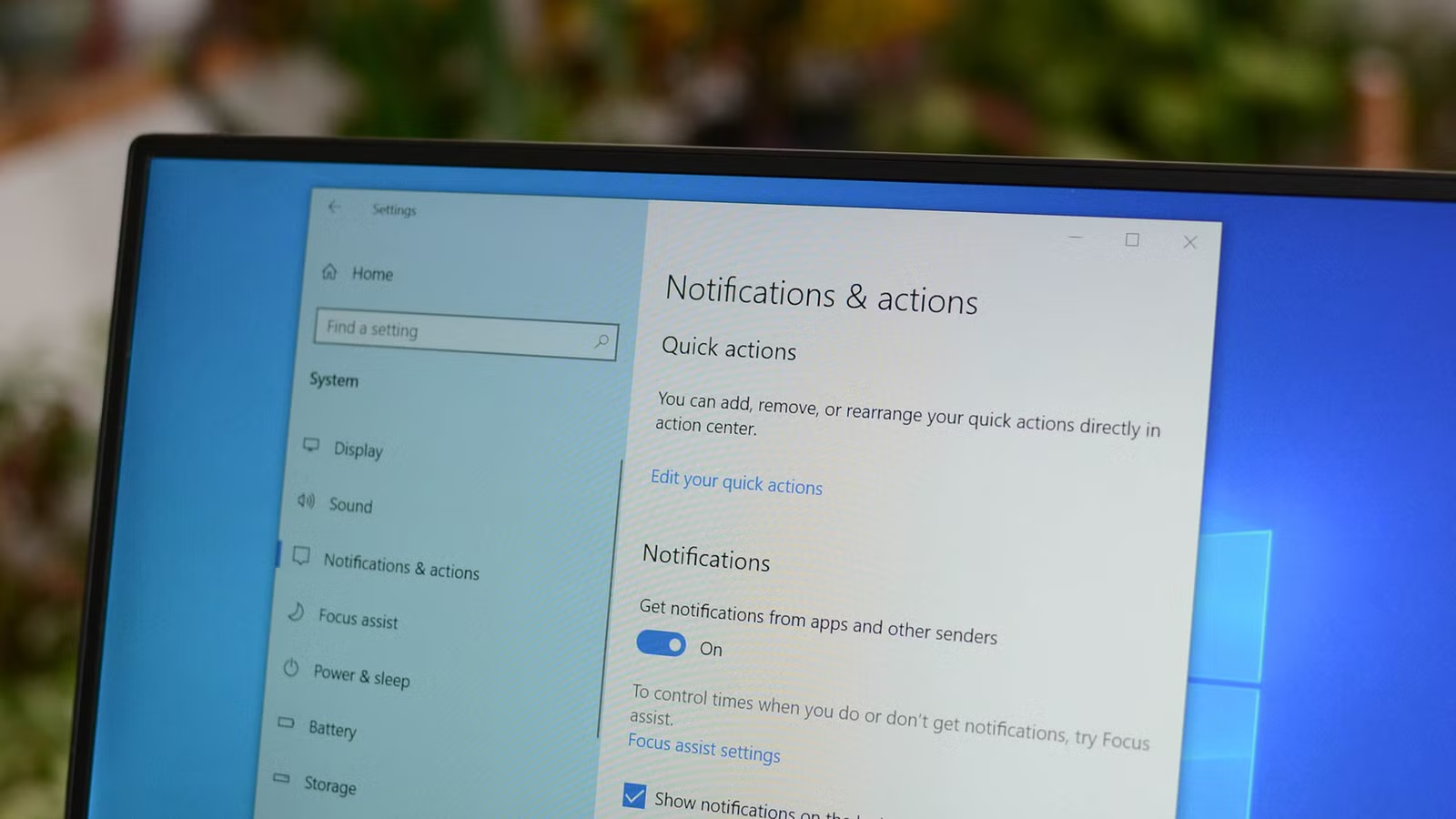
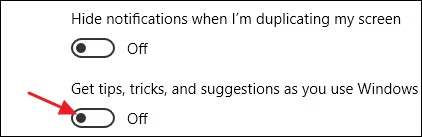
On Windows 10, system tips, suggestions, and certain notification features can sometimes cause Runtime Broker to become more active. You can reduce this activity by opening Settings > System > Notifications & actions and disabling the option that shows tips, tricks, and suggestions while using Windows.
A problematic app can also cause Runtime Broker to consume more system resources than usual. If this happens, try to identify which app is responsible by checking recently opened or installed applications.
Start by making sure the app is updated to the latest version. If the issue continues, uninstalling and reinstalling the app may help fix corrupted files or settings. If the problem still remains, consider reporting it to the app developer. You can also remove the app temporarily if you do not need it.
Related: How Many CPU Cores Do You Need for Gaming?
Can I Disable Runtime Broker?
Runtime Broker should not be permanently disabled because it plays an important role in managing app permissions and protecting privacy in Windows. Under normal conditions, it uses very few system resources, so there is usually no benefit to turning it off.
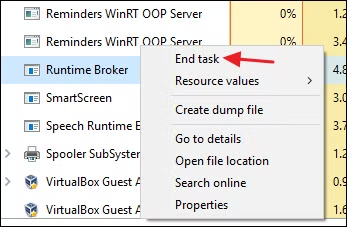
If Runtime Broker appears to be stuck or using unusually high resources, you can temporarily stop the process through Task Manager. Right-click Runtime Broker and select End task. Windows will usually start the process again automatically when it is needed.
Runtime Broker usually starts again automatically after a short time. Until it restarts, some Microsoft Store apps may be unable to access required permissions or privacy settings, which can prevent them from working correctly.
Is Runtime Broker a Virus?
Runtime Broker is a legitimate Windows system process and is not a virus. However, malicious software can sometimes use names that resemble trusted system processes in an attempt to avoid detection.
If you want to verify that Runtime Broker is genuine, open Task Manager, right-click the Runtime Broker process, and select Open file location. A legitimate copy should be stored in the appropriate Windows system folder. If the file appears in an unusual location, it may be worth scanning your computer with trusted security software.
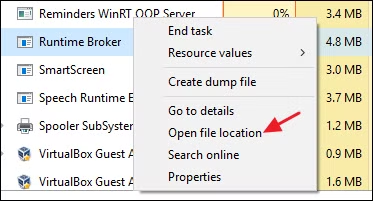
If the Runtime Broker file is located in the C:\Windows\System32 folder, it is most likely the legitimate Windows system process rather than malicious software.
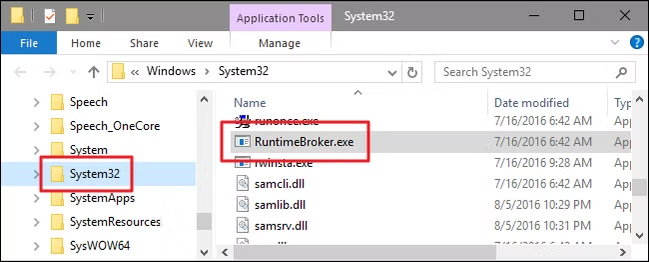
If you still have concerns about Runtime Broker, you can run a scan using a trusted antivirus or security tool. This can help confirm that the process is legitimate and that no malware is using a similar name.
Runtime Broker is just one of many background processes you may see in Task Manager. Other common Windows processes include svchost.exe, dwm.exe, ctfmon.exe, conhost.exe, and rundll32.exe. Understanding what these processes do can make it easier to identify normal system activity and spot anything unusual.
Related: Understanding Common Task Manager Processes
Frequently Asked Questions
What is Runtime Broker in Windows?
Runtime Broker is a legitimate Windows system process that manages permissions for Microsoft Store apps. It helps control access to features such as your microphone, camera, location, and other privacy-related settings.
Why is Runtime Broker running on my PC?
Runtime Broker runs in the background because Windows uses it to monitor app permissions. It may become more active when you open or use certain Microsoft Store apps.
Is Runtime Broker safe?
Yes, Runtime Broker is a genuine Microsoft process and is normally safe. If you are concerned, you can check its file location in Task Manager to confirm that it is stored in the Windows system folder.
Why is Runtime Broker using so much CPU?
High CPU usage can happen temporarily when an app is launched or when Windows is handling notifications, tips, or permissions. If the usage stays high, a misbehaving app or background feature may be responsible.
Why is Runtime Broker using a lot of memory?
Runtime Broker usually uses only a small amount of memory. Its memory usage may increase while certain apps are active, but it should normally decrease again when those apps are closed.
Can I disable Runtime Broker?
Runtime Broker should not be permanently disabled because it is part of Windows security and privacy management. You can end the process temporarily in Task Manager, but Windows will usually restart it automatically.
How can I fix high Runtime Broker usage?
Start by closing unnecessary apps, updating Windows and installed apps, and disabling unwanted tips or notifications. If one app appears to be causing the issue, try updating, reinstalling, or removing it.
Conclusion
Runtime Broker is a legitimate Windows process that helps manage app permissions and protect your privacy. It normally runs quietly in the background and uses very few system resources.
Occasional increases in CPU or memory usage are usually normal, especially when apps are opening or requesting permissions. If Runtime Broker continues using unusually high resources, checking for problematic apps, adjusting notification settings, and running a security scan can help identify the cause.
In most cases, there is no need to disable Runtime Broker, as it is an important part of how Windows manages app security and privacy.
